In this tutorial, we explain how to install Icy on Windows, Mac and Linux, step by step.
Windows
- Check Java version. If you do not have Java 8, install it (OpenJDK or Oracle JRE version).
For OpenJDK, don’t forget to check the PATH and the registry update during installation or it won’t be find. - Set the JAVA variable (to the Java 8 version you just installed)
- Go to System Properties -> Advanced (search in the Windows search bar for “environmental variables” and click on “Edit ) and click on Environment Variables.
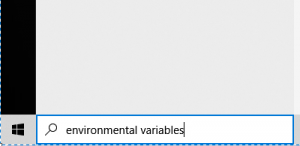
-
- then click on Edit environment variables for your account:

- Click on Environment Variables at bottom:
- then click on Edit environment variables for your account:
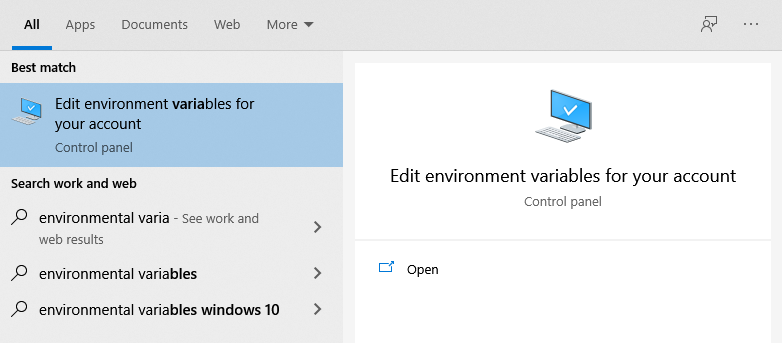
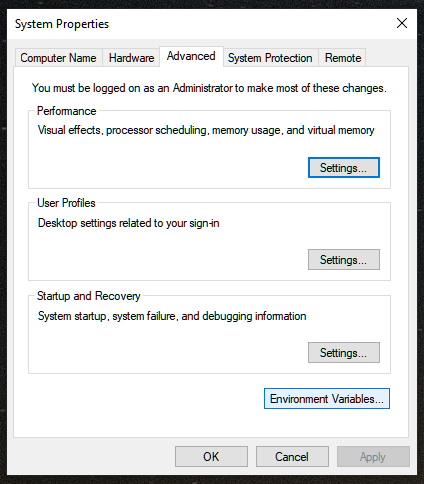
-
- Create a new System variable named JAVA_HOME containing the path when you installed Java 8:
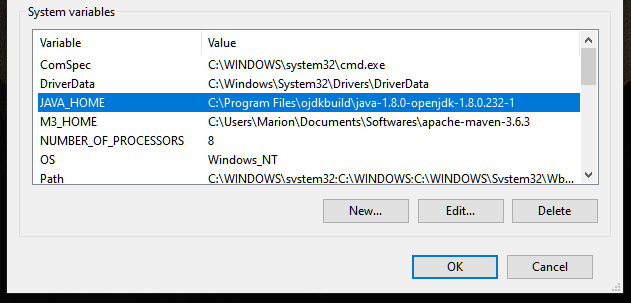
- Download Icy for windows
- Unzip the Icy folder in your Documents. Do not install Icy in the Program Files folder or the application may not work correctly (auto update, plugin installation, settings..) because of missing write permission (C:\Icy is a good alternative). If VTK library loading fail, try to install the VC++ 2015-2019 redistributable package on your system.
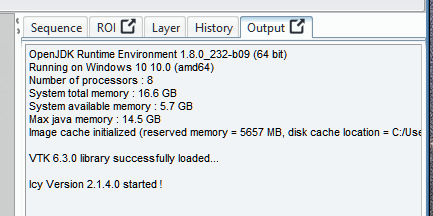
- Open the Icy folder. Double-click on the icy.exe file. Icy should launch. You can pin Icy in the Taskbar for a quicker access. In the Output tab, you should see information relative to your system, the version of Icy and the version of VTK. If something fails during launching of Icy, it will appear here.
Mac
- Check Java version. If you do not have Java 8, install it (OpenJDK or Oracle JDK version).
Note that you need to have JDK 8 installed (not the JRE) otherwise Java won’t be recognized. - Set the new installed Java as the default version.
- Download Icy for Mac
- Unzip the Icy folder in your Documents.
- Move the Icy application into the Applications folder.
The first time you try to launch the application it may not work because of the default Security preferences. Force it by doing right click on the application icon (or Ctrl+click) and use Open command.
Validate the Open operation then now you should now be able to use Icy normally.
Linux
- Check Java version.
- If you’re using Ubuntu 16 or older, you require Java 8 at least
sudo apt install openjdk-8-jdk
- If you’re using Ubuntu 18 or later you need Java 11 at least
sudo apt install openjdk-11-jdk
- If you’re using Ubuntu 16 or older, you require Java 8 at least
- Set the JAVA HOME path
- Download Icy for Linux
- Unzip the Icy folder in your Documents.
- Launch Icy:
- In the terminal, go to the unzipped folder of Icy
cd PATH_TO_UNZIPPED_ICY_FOLDER
- Then launch Icy
./icy
- In the terminal, go to the unzipped folder of Icy
Icy now includes the VTK binaries (with java binding), be sure to start Icy from its folder so VTK library can load correctly.
Still you may experience incompatibilities depending your Linux distribution, as we tested only for Ubuntu and Mint. In this case you may need to install (or compile) the dedicated VTK package (version 8.0.1 currently) with java wrapper for your distribution and move the library files (.so) into the lib/linux64/vtk folder of Icy.
In case Icy window freeze when starting Icy, try changing Java version (for instance, try Open JDK 11).
Troubleshoot
You can’t have Java 8 on your system
Icy requires at least Java 8 to work and even if it should work with newer version (up to Java 11) we recommend to use Java 8 (OpenJDK or Oracle version depending what you prefer). If you only have Java 6 or Java 7 you may try to use older versions of Icy and disable auto update:
-
Your system or your graphics card doesn’t support OpenGL 3
Starting from Icy 1.8.0.0 the VTK library has been upgraded to version 6.3 and now uses the new OpenGL2 back-end for rendering. That means older graphics card may not support VTK 3D rendering anymore, same is true for older Mac OSX systems (<= 10.6.X) which don’t support the new OpenGL based components for VTK. If you really need to use VTK and OpenGL2 / OpenGL3 is not supported anymore by your system then you may stick with the 1.7.3.0 version of Icy (you can find the download link at bottom of the Download page).